
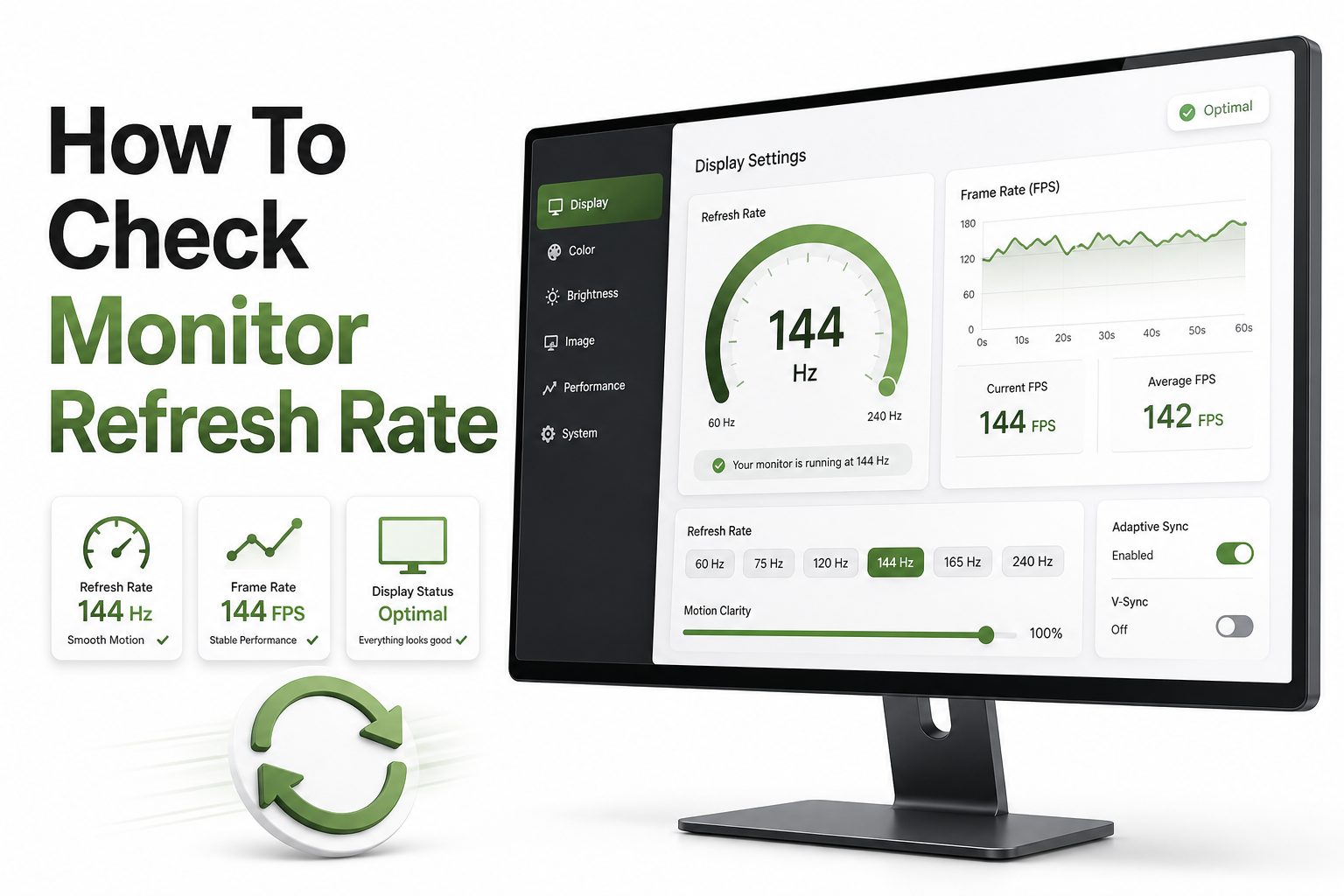
If your screen feels unusually smooth, strangely choppy, or different after connecting a new monitor, refresh rate is one of the first settings worth checking. The refresh rate tells you how many times per second your display updates the image, usually measured in hertz, such as 60Hz, 120Hz, 144Hz, or 240Hz. A higher number can make motion look cleaner, especially in games, video editing, scrolling, and fast-paced work.
Knowing how to check monitor refresh rate also helps you confirm whether your display is running at its advertised speed. Many monitors default to 60Hz even when they support much higher rates, especially after a cable change, driver update, or new graphics card installation. The good news is that checking it only takes a few minutes on most devices. This article walks through the practical ways to verify your refresh rate, change it when needed, and troubleshoot common problems that stop your monitor from performing properly.
What Monitor Refresh Rate Means
Monitor refresh rate is the number of times your display redraws the image every second. A 60Hz monitor refreshes 60 times per second, while a 144Hz monitor refreshes 144 times per second. More refreshes can reduce visible blur and make motion appear more responsive.
Refresh rate is different from frame rate, though the two are closely related. Frame rate comes from your computer or console, while refresh rate comes from the screen. For the smoothest result, your system should output frames that match or work well with your monitor’s refresh capability.
Why Checking Refresh Rate Matters
A monitor may support a high refresh rate but still run at a lower setting. This happens often after plugging into the wrong port, using an older cable, or installing fresh display drivers. Checking the setting confirms whether you are getting the performance you paid for.
Refresh rate also affects comfort. Some users notice less eye strain and smoother pointer movement at higher refresh rates. For gaming, animation, and precision work, the difference can be significant because screen updates happen more frequently and input can feel more immediate.
Key Refresh Rate Facts
- 60Hz is common for office displays, laptops, and basic monitors.
- 75Hz can feel slightly smoother than 60Hz for everyday use.
- 120Hz is popular for newer laptops, TVs, and consoles.
- 144Hz and 165Hz are common gaming monitor refresh rates.
- 240Hz and higher are aimed at competitive gaming.
- Your cable, port, GPU, and resolution can limit available refresh rates.
- A monitor’s advertised refresh rate may require DisplayPort, HDMI 2.1, or a specific setting.
How to Check Monitor Refresh Rate on Windows
On Windows 11, open Settings, choose System, then Display, and select Advanced display. You will see your connected monitor and a refresh rate dropdown. This screen shows the current refresh rate and available options supported by your display setup.
On Windows 10, go to Settings, then System, Display, and Advanced display settings. Select the correct monitor if you use more than one screen. Windows will show the active refresh rate, and you can open display adapter properties for additional monitor settings.
How to Change Refresh Rate on Windows
If your monitor supports a higher refresh rate, choose it from the refresh rate menu and confirm the change. Windows may briefly flicker while applying the setting. If the screen goes blank, wait a few seconds and it should automatically return to the previous configuration.
If the expected option is missing, check your monitor cable, graphics driver, and resolution. Some monitors only reach their highest refresh rate at specific resolutions. For more display setup help, see [Internal Link: Monitor Settings Guide] for related troubleshooting steps.
Windows Refresh Rate Checklist
- Open Advanced display settings.
- Select the correct monitor from the dropdown.
- Confirm the active refresh rate.
- Choose the highest stable supported option.
- Check the cable type if high refresh rates are missing.
- Update GPU drivers if Windows shows limited options.
- Restart after major driver or monitor changes.
How to Check Monitor Refresh Rate on Mac
On macOS, open System Settings, choose Displays, and select your connected display. Many Macs show a refresh rate dropdown directly in this panel. If you have multiple displays connected, click the monitor you want to inspect before reading the available settings.
Some Mac models hide extra refresh rate options unless you hold the Option key while selecting display settings. Apple displays and ProMotion screens may also use adaptive refresh rates, which adjust automatically depending on the content and power conditions.
How to Change Refresh Rate on Mac
Choose the refresh rate from the Displays menu if macOS offers multiple options. External monitors may list settings such as 60Hz, 120Hz, 144Hz, or variable refresh. The screen may flash briefly as macOS applies the selected mode.
If your expected refresh rate is unavailable, try a different cable or adapter. Many USB-C hubs cannot pass high refresh rates at high resolutions. For example, a 4K monitor may need a direct USB-C to DisplayPort connection to reach 120Hz or above.
How to Check Refresh Rate on Gaming Monitors
Most gaming monitors include an on-screen display menu controlled by buttons or a joystick on the monitor itself. Open the monitor menu and look for Information, Display, Gaming, or Status. Many models show the current resolution and refresh rate in that area.
This built-in reading is useful because it reports what the monitor is actually receiving. If Windows says 144Hz but the monitor status shows 60Hz, there may be a configuration issue, cable limitation, or duplicated display mode forcing a lower output.
How to Check Refresh Rate in Nvidia Control Panel
Right-click the desktop and open Nvidia Control Panel, then choose Change resolution under Display. Select your monitor and check the refresh rate dropdown. Nvidia often separates TV resolutions from PC resolutions, and PC modes usually provide better high-refresh options.
If you use G-Sync or compatible adaptive sync, check the Set up G-Sync section as well. Make sure the correct display is selected and enabled. This helps confirm that both refresh rate and variable refresh behavior are configured properly.
Comparison of Common Refresh Rates
Refresh Rate | Best For | Typical Benefit
60Hz | Office work, browsing, streaming | Standard motion and broad compatibility
75Hz | Budget monitors, light gaming | Slightly smoother scrolling and movement
120Hz | Consoles, laptops, media work | Noticeably smoother motion
144Hz | PC gaming, fast workflows | Better responsiveness and reduced blur
165Hz | Gaming monitors | Small improvement over 144Hz
240Hz | Competitive games | Very fast response for skilled players
How to Check Refresh Rate with AMD Software
Open AMD Software, go to Gaming or Display, and select your monitor. The display section usually shows refresh rate, resolution, FreeSync status, color depth, and other signal details. This is useful when Windows settings do not clearly show every active display feature.
AMD users should also check whether FreeSync is enabled on both the monitor menu and inside AMD Software. A high refresh rate can work without FreeSync, but adaptive sync can reduce tearing when frame rates change during games or demanding graphics tasks.
How to Check Refresh Rate with Intel Graphics
On systems using Intel integrated graphics, open Intel Graphics Command Center and select Display. Choose the active monitor and review the refresh rate field. This is common on laptops, mini PCs, office desktops, and systems without a dedicated graphics card.
Intel settings can be especially helpful when a laptop drives an external monitor through USB-C or HDMI. If the refresh rate is capped, the limitation may come from the laptop port, dock, adapter, or integrated graphics output rather than the monitor itself.
How to Check Monitor Refresh Rate Online
Several browser-based refresh rate testers can estimate your screen’s current refresh rate. These tools animate frames in the browser and calculate how often the image updates. They are quick and useful when you want a second opinion outside system settings.
Online tests are not perfect because browser performance, background tabs, battery saving, and system load can affect readings. Still, if a tool consistently reports around 60Hz when your monitor should be 144Hz, it is worth checking your operating system settings again.
How Accurate Browser Refresh Rate Tests Are
Browser tests are best used as confirmation, not as the only source of truth. They can show whether your display behaves like a high-refresh panel during real motion. This makes them helpful for spotting mismatches after you change settings.
For the most reliable result, close demanding apps, plug in your laptop, and run the test in a focused browser window. If the result fluctuates heavily, your system may be under load or the browser may be limiting animation performance.
Tips for Reliable Testing
- Use your operating system display settings as the main source.
- Confirm the result in your GPU control panel.
- Check the monitor’s own on-screen information menu.
- Run browser tests after closing heavy apps.
- Disable battery saver before testing on laptops.
- Test at the resolution you actually plan to use.
- Restart the system if a new refresh rate does not apply correctly.
How to Check Refresh Rate on a Laptop
Laptop refresh rate settings are usually found in the same display menu as desktop monitors. On Windows, Advanced display shows the internal screen and any external displays. On macOS, the Displays panel shows built-in and connected screens separately.
Some laptops switch refresh rates automatically to save battery. A 120Hz or 165Hz screen may drop to 60Hz when unplugged or when power saving is enabled. Check your manufacturer utility, graphics software, and power mode if the setting keeps changing.
How to Check Refresh Rate on External Monitors
External monitors depend on the full signal path. The monitor, cable, adapter, dock, computer port, and graphics hardware must all support the refresh rate at your chosen resolution. One weak link can force the display to run at a lower setting.
For example, a monitor may support 144Hz over DisplayPort but only 60Hz over an older HDMI port. If you want to verify how to check monitor refresh rate accurately, inspect both system settings and the monitor’s information menu after connecting the cable.
External Monitor Setup Checklist
- Confirm the monitor supports the target refresh rate.
- Use the recommended port from the monitor manual.
- Prefer DisplayPort for many high-refresh PC monitors.
- Use certified HDMI cables for 4K 120Hz or higher.
- Avoid low-quality adapters when possible.
- Check whether a dock limits bandwidth.
- Match the correct input mode in the monitor menu.
Why Your Monitor Shows Only 60Hz
The most common reason is a cable or port limitation. Older HDMI versions, basic USB-C adapters, and some docking stations cannot carry enough bandwidth for high resolution and high refresh rate together. The display may work, but only at 60Hz.
Another reason is an incorrect display mode. Windows may list multiple versions of the same resolution, and only some support high refresh. GPU drivers, duplicate display mode, outdated firmware, or using a TV-style resolution can also hide the correct option.
How Resolution Affects Refresh Rate
Higher resolution requires more bandwidth. A cable that handles 1080p at 144Hz may not handle 4K at 144Hz. This is why the same monitor can show different refresh rate options depending on whether you choose 1080p, 1440p, or 4K.
Color settings also matter. Higher color depth, HDR, and chroma formats can use extra bandwidth. If a high refresh rate disappears after enabling HDR, your setup may not have enough bandwidth for both features at the same time.
Common Fixes for Missing Refresh Rate Options
- Switch from HDMI to DisplayPort if your monitor recommends it.
- Try a certified higher-bandwidth cable.
- Connect directly instead of using a dock.
- Update Nvidia, AMD, or Intel graphics drivers.
- Select the monitor’s native resolution.
- Turn off display duplication and use extended mode.
- Check the monitor menu for overclock or high-refresh settings.
- Disable HDR temporarily to test bandwidth limits.
How Refresh Rate Affects Gaming
In gaming, refresh rate influences how often new visual information reaches your eyes. A 144Hz screen can show more frequent updates than a 60Hz screen, which can make aiming, camera movement, and fast reactions feel more controlled.
Refresh rate alone does not guarantee better gameplay. Your computer or console must produce enough frames to benefit from it. If a game runs at 70 frames per second on a 144Hz monitor, it will still look smoother than 60Hz, but not as smooth as a steady 144 frames per second.
How Refresh Rate Affects Everyday Use
Even outside games, refresh rate changes how a computer feels. Scrolling long pages, moving windows, dragging files, and using a stylus can look cleaner at higher refresh rates. Many people notice the difference most when returning from 120Hz or 144Hz to 60Hz.
For office work, the benefit is more about comfort than raw performance. Text remains readable during movement, mouse tracking feels more fluid, and animations appear less harsh. If you spend hours at a screen, a properly configured refresh rate can improve daily usability.
Refresh Rate Versus Response Time
Refresh rate describes how often the screen updates. Response time describes how quickly pixels change from one color or shade to another. Both affect motion clarity, but they are not the same measurement and should not be compared as identical specifications.
A high refresh rate with slow pixel response can still show ghosting or smearing. That is why gaming monitor reviews often test real motion performance. When buying a display, look at refresh rate, response time behavior, input lag, and panel quality together.
Refresh Rate Versus Frame Rate
Frame rate is produced by the device sending images to the monitor. Refresh rate is the monitor’s ability to display updates. If your PC produces 200 frames per second but your monitor is 60Hz, you will only see 60 refreshes per second.
If your monitor is 144Hz but your game runs at 45 frames per second, the monitor cannot invent true frames without special processing. Technologies such as G-Sync, FreeSync, and VRR help smooth frame delivery when performance rises and falls.
Quick Comparison
Refresh rate:
Controls how often the monitor updates the image.
Frame rate:
Controls how many frames your device creates each second.
Response time:
Controls how quickly pixels change between colors.
Input lag:
Controls how delayed actions feel between input and display.
Adaptive sync:
Matches monitor refresh behavior to changing frame output.
How to Check Refresh Rate on Consoles
On PlayStation 5, go to Settings, then Screen and Video, and review Video Output Information. This area shows resolution, HDR status, VRR support, and whether 120Hz output is available. Individual games may also need a performance mode enabled.
On Xbox Series X or Series S, open Settings, General, TV and display options. You can choose resolution and refresh rate from the display menu. The 4K TV details screen also shows which video modes your display supports.
How to Check Refresh Rate on a TV
Modern TVs often support 60Hz, 120Hz, or variable refresh rate, but marketing terms can be confusing. Look for the real panel refresh rate in the specifications. Terms such as motion rate or motion smoothing may not mean true native refresh rate.
To confirm the active signal, open your TV’s input information panel while the device is connected. Many TVs show current resolution, refresh rate, HDR format, and VRR status. Use this alongside console or PC settings for the most accurate reading.
Console and TV Tips
- Use HDMI 2.1 for 4K at 120Hz when required.
- Enable enhanced HDMI mode in the TV settings.
- Turn on game mode for lower input lag.
- Check each HDMI port because not all ports match.
- Enable 120Hz mode in supported games.
- Use the console’s video information screen.
- Confirm the TV reports the same signal.
How to Verify Your Monitor Is Really Running at the Right
Start by checking your operating system settings, then compare that result with your graphics control panel. If both show the same refresh rate, the configuration is likely correct. For extra confidence, open the monitor’s on-screen information menu.
After that, run a browser motion test or move windows quickly across the screen. This practical check is not as technical, but it helps confirm the visible result. A true 144Hz or 240Hz display should feel noticeably smoother than 60Hz.
Best Refresh Rate for Different Users
For general productivity, 60Hz is usable, but 75Hz to 120Hz feels more comfortable if your budget allows it. Writers, developers, analysts, and students can benefit from smoother scrolling and reduced visual harshness during long working sessions.
For gaming, 144Hz remains a strong target because it balances price, performance, and visible smoothness. Competitive players may prefer 240Hz or higher, while console users should look for 120Hz support with HDMI 2.1 and variable refresh rate.
Recommended Refresh Rates by Use
Use Case | Recommended Refresh Rate
Basic office work | 60Hz to 75Hz
Long daily computer use | 100Hz to 120Hz
Casual gaming | 120Hz to 144Hz
Competitive PC gaming | 165Hz to 240Hz
Console gaming | 120Hz
Video editing | 60Hz to 120Hz
High-end esports | 240Hz or higher
Mistakes to Avoid When Checking Refresh Rate
Do not rely only on the monitor box or product listing. The advertised number tells you what the display can support, not what it is currently using. Always check the active setting inside your operating system or display information menu.
Do not assume every cable with the right connector performs the same. Two HDMI cables can look identical but support different bandwidth levels. If your high refresh option is missing, testing with a known certified cable is often the fastest fix.
When to Upgrade Your Monitor
If your monitor is limited to 60Hz and you regularly play fast games, edit motion-heavy media, or simply want a smoother desktop, an upgrade can be worthwhile. A higher refresh screen is one of the most noticeable display improvements for many users.
Before buying, make sure your computer can support the target resolution and refresh rate. A 240Hz 1440p monitor needs far more graphics power than a 1080p 144Hz screen. Match the display to your hardware, not only to the biggest number on the spec sheet.
Buying Considerations
- Choose resolution and refresh rate together.
- Check whether your GPU supports the target output.
- Look for DisplayPort or HDMI 2.1 when needed.
- Read reviews for real response time performance.
- Consider adaptive sync support.
- Avoid paying extra for refresh rates your hardware cannot use.
- Confirm desk size, ergonomics, and panel type before ordering.
Conclusion
Checking your monitor’s refresh rate is a simple step that can make a real difference in how your screen feels. Whether you use Windows, macOS, a gaming console, or an external display, the key is to confirm the active setting instead of relying only on the monitor’s advertised specification.
If the refresh rate is lower than expected, the issue usually comes down to cable bandwidth, port limits, display mode, drivers, or resolution settings. Start with your system display menu, confirm the result in your GPU software, and check the monitor’s own information screen when available.
Once you know how to check monitor refresh rate, you can make better decisions about display settings, gaming performance, comfort, and future upgrades. A correctly configured monitor gives you the smoothness your hardware is capable of delivering, without unnecessary guesswork.
FAQ
Can I check refresh rate without installing software?
Yes. Windows, macOS, consoles, and many monitors show refresh rate in built-in display settings. Browser-based tests can also help confirm motion behavior, but system settings are usually the most reliable place to start.
Why is my 144Hz monitor running at 60Hz?
Your monitor may be connected with a limited cable, wrong port, outdated driver, or unsupported resolution setting. Check Advanced display settings, use DisplayPort if recommended, and confirm the active signal in the monitor menu.
Does higher refresh rate improve video quality?
Higher refresh rate mainly improves motion smoothness, not sharpness or color quality. Movies and streaming videos often play at fixed frame rates, so the benefit is more noticeable in scrolling, gaming, animation, and interactive tasks.
Is 120Hz enough for gaming?
Yes, 120Hz is a strong option for many players and is especially common on modern consoles. PC gamers who play competitive shooters may prefer 144Hz, 165Hz, or 240Hz, depending on hardware performance.
Can refresh rate affect eye comfort?
For some people, yes. Higher refresh rates can make motion, cursor movement, and scrolling look smoother, which may feel easier during long sessions. Brightness, glare, viewing distance, and flicker behavior also affect comfort.
0 Comments