
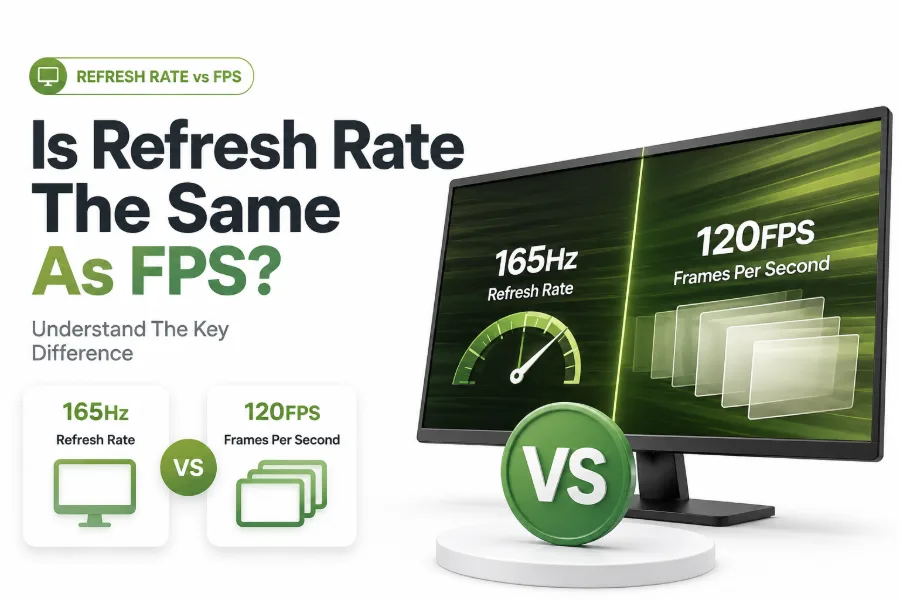
Wondering, is refresh rate the same as fps? Learn how Hz, frame rate, monitors, and games work together for smoother visuals and better gaming.
Is refresh rate the same as fps is a common question for gamers, video editors, and anyone shopping for a new monitor. The two terms are closely connected, which is why they often get mixed together, but they describe different parts of how motion appears on a screen.
Refresh rate belongs to your display. FPS belongs to the device or software producing the image. When both work well together, games feel smoother, videos look cleaner, and fast motion becomes easier to follow. When they do not match well, you may notice screen tearing, stutter, input delay, or wasted performance.
The difference matters most when buying a gaming monitor, upgrading a graphics card, changing console settings, or tuning a PC game. A 144Hz display will not magically create 144 FPS, and a powerful GPU cannot show every frame if the monitor refreshes too slowly. Once you know how the two interact, choosing the right setup becomes much easier.
Refresh Rate Means How Often a Screen Updates
Refresh rate is measured in hertz, written as Hz. It tells you how many times per second a screen can refresh its image. A 60Hz monitor refreshes 60 times each second, while a 144Hz monitor refreshes 144 times each second.
This does not mean the monitor creates new game frames by itself. It only describes the screen’s ability to display updated images. If the computer sends fewer frames than the monitor can show, the display repeats frames until a new one arrives.
FPS Means How Many Frames Are Produced
FPS stands for frames per second. It measures how many individual images your game, video, console, or computer generates each second. In gaming, FPS usually depends on the graphics card, processor, game engine, settings, and scene complexity.
A game running at 120 FPS is producing 120 unique frames every second. If your monitor supports that rate, motion can look very smooth. If your monitor is limited to 60Hz, only part of that output can be fully displayed.
Quick Difference Checklist
- Refresh rate is a display specification measured in Hz.
- FPS is output performance measured in frames per second.
- A monitor can refresh faster than the game produces frames.
- A game can produce more frames than the monitor can display.
- Smooth motion depends on both working together.
- Higher numbers help most in fast games, not static tasks.
How Refresh Rate and FPS Work Together
The best visual result happens when your system produces frames at a rate your monitor can display cleanly. For example, 144 FPS on a 144Hz monitor creates a smooth and responsive feel because the display receives a fresh frame for nearly every refresh cycle.
If FPS drops below the refresh rate, the screen may show repeated frames. That can make motion feel uneven, especially in fast games. If FPS rises above the refresh rate, extra frames may reduce input latency, but they will not all appear as distinct full-screen updates.
Why People Confuse Refresh Rate With FPS
People confuse these terms because both describe speed and smoothness. Monitor ads often promote 144Hz, 165Hz, or 240Hz alongside gaming performance claims, while gamers discuss FPS as the main sign of a powerful PC or console.
The confusion also comes from real-world overlap. A higher refresh rate monitor only feels useful when your system can produce enough FPS. Likewise, high FPS becomes easier to appreciate when the display can refresh quickly enough to show it.
Refresh Rate and FPS Comparison Table
Term | What It Measures | Controlled By | Common Examples
Refresh rate | Screen updates per second | Monitor or TV | 60Hz, 120Hz, 144Hz, 240Hz
FPS | Frames produced per second | GPU, CPU, game, console | 30 FPS, 60 FPS, 120 FPS
Main benefit | Display smoothness | Hardware panel speed | Clearer motion
Main limit | Screen capability | System performance | Stutter or tearing
Why Higher Refresh Rate Feels Smoother
A higher refresh rate reduces the time between screen updates. At 60Hz, the screen refreshes about every 16.7 milliseconds. At 144Hz, that delay drops to about 6.9 milliseconds, which makes movement look more fluid and responsive.
This is especially noticeable when moving a mouse, aiming in a shooter, scrolling quickly, or tracking objects across the screen. The improvement is not just visual. Lower display delay can also make controls feel more immediate during competitive play.
Why Higher FPS Can Improve Responsiveness
Higher FPS can reduce the delay between your input and the next rendered frame. When a game produces frames more often, it has more chances to reflect your latest mouse movement, controller input, or keyboard action.
Even if your monitor cannot show every frame, higher FPS may still reduce input latency. This is why some competitive players run games at very high frame rates, even when their display refresh rate is lower than the FPS counter.
Key Benefits of Matching FPS and Refresh Rate
- Motion appears more consistent during fast gameplay.
- Screen tearing becomes easier to control.
- Input response feels more predictable.
- Hardware performance is used more efficiently.
- Frame pacing problems are easier to notice and fix.
- Gaming monitors deliver more of their advertised value.
What Happens When FPS Is Lower Than Refresh Rate
When FPS is lower than refresh rate, the monitor refreshes more often than new frames are available. A 144Hz monitor running a game at 45 FPS still refreshes 144 times per second, but many refreshes show repeated frames.
This can cause uneven motion if frame delivery is inconsistent. A steady 60 FPS can feel better than a fluctuating 80 to 120 FPS because timing matters. Smoothness depends not only on the number of frames, but also on how evenly they arrive.
What Happens When FPS Is Higher Than Refresh Rate
When FPS is higher than refresh rate, your system produces more frames than the display can fully show. A game running at 180 FPS on a 60Hz monitor may feel responsive, but the monitor can refresh only 60 times per second.
This can lead to screen tearing when parts of different frames appear during the same refresh cycle. Some players accept tearing for lower input delay, while others use V-Sync, G-Sync, or FreeSync to create a cleaner image.
Important Facts About Frame Timing
- Stable frame delivery often feels better than unstable peak FPS.
- A locked 120 FPS can feel cleaner than a jumpy 160 FPS.
- Frame time is measured in milliseconds between frames.
- Lower frame time usually means faster visual updates.
- Sudden frame-time spikes cause stutter even when average FPS looks high.
- Good performance tuning focuses on consistency, not only maximum numbers.
The Role of V-Sync in Smooth Motion
V-Sync, or vertical sync, makes the game wait for the monitor’s refresh cycle before showing a new frame. This can remove screen tearing and create cleaner motion when FPS lines up well with the display’s refresh rate.
The tradeoff is added input delay and possible stutter when FPS cannot keep up. If a game drops below the target refresh rate, traditional V-Sync may feel less responsive. It works best when your system can maintain a steady frame rate.
How G-Sync and FreeSync Help
G-Sync and FreeSync are variable refresh rate technologies. Instead of forcing the game to match a fixed monitor refresh cycle, they let the display adjust its refresh timing to match the game’s changing FPS within a supported range.
This helps reduce tearing and stutter without the same input delay penalty as traditional V-Sync. For many PC gamers, a variable refresh rate monitor is one of the most noticeable upgrades after moving beyond a basic 60Hz display.
Useful Settings for Smoother Gameplay
- Enable G-Sync or FreeSync if your monitor supports it.
- Cap FPS slightly below maximum refresh rate for stable pacing.
- Lower demanding graphics settings if FPS drops often.
- Use exclusive fullscreen or optimized borderless mode when needed.
- Update GPU drivers when performance feels inconsistent.
- Check both in-game settings and monitor display settings.
Refresh Rate for Console Gaming
Modern consoles often support 60 FPS and 120 FPS modes, but the display must support the matching refresh rate. A PlayStation or Xbox connected to a 60Hz TV cannot show true 120Hz gameplay, even if the game has a 120 FPS mode.
You also need the right HDMI version, cable, and TV settings. Many televisions require game mode or enhanced HDMI mode to unlock 120Hz. Without those settings, the console may limit output even when the hardware is capable.
Refresh Rate for PC Gaming
PC gaming gives more control over refresh rate and FPS, but it also introduces more variables. Your GPU, CPU, RAM, game settings, drivers, monitor cable, and Windows display settings can all affect the final experience.
A common mistake is buying a high refresh monitor but leaving Windows set to 60Hz. After connecting a 144Hz or 240Hz display, check your operating system and graphics control panel to make sure the correct refresh rate is active.
PC Setup Checklist
- Confirm the monitor is set to its highest refresh rate.
- Use DisplayPort or the correct HDMI standard for your monitor.
- Check in-game FPS limits and refresh settings.
- Enable variable refresh rate if available.
- Monitor GPU and CPU usage during demanding scenes.
- Balance visual quality settings against consistent FPS.
Refresh Rate in Everyday Use
Higher refresh rate is not only for games. A 120Hz or 144Hz screen can make scrolling, cursor movement, animations, and window dragging feel smoother. Many phones, tablets, and laptops now use high refresh displays for this reason.
Still, everyday benefits depend on the task. Writing documents, reading articles, or working in spreadsheets may not need 144Hz. The difference becomes clearer when motion is constant, such as browsing long pages, editing timelines, or using design software.
FPS in Video and Movies
Movies and online videos usually use fixed frame rates such as 24 FPS, 30 FPS, or 60 FPS. A high refresh monitor can display them, but it does not add original frames unless motion interpolation or frame generation is involved.
For video playback, refresh rate matching can help reduce judder. For example, 24 FPS content often displays cleanly on screens that can refresh at multiples of 24. This is different from gaming, where FPS can change constantly based on workload.
Common Content Frame Rates
- 24 FPS is common for movies and cinematic video.
- 30 FPS is common for standard online video and broadcasts.
- 60 FPS is common for sports, gameplay clips, and smooth video.
- 120 FPS is used for slow motion or high-end capture.
- Games often vary widely unless capped.
- Monitors refresh independently from the source frame rate.
Is 60Hz Still Enough
A 60Hz display is still usable for office work, streaming, casual games, and general browsing. Many people can work comfortably on 60Hz for years, especially if they are not playing fast competitive titles or chasing low input latency.
For gaming, 60Hz is now the entry point rather than the high-performance target. Single-player games can still look excellent at 60 FPS, but shooters, racing games, and esports titles benefit strongly from 120Hz, 144Hz, or higher.
Is 144Hz Worth It for Gaming
For most PC gamers, 144Hz is the practical sweet spot. It delivers a major improvement over 60Hz without requiring the extreme hardware needed to fully benefit from 240Hz or 360Hz in every game.
The value depends on your system’s ability to produce high FPS. A 144Hz monitor is worthwhile if your games often run near 100 FPS or higher. For demanding cinematic games, you may prefer better image quality at 60 to 100 FPS.
Buying Tips for Gaming Monitors
- Choose 144Hz or higher for fast competitive games.
- Prioritize variable refresh rate support.
- Check resolution because 1440p needs more GPU power than 1080p.
- Look at response time and input lag, not refresh rate alone.
- Confirm your console or PC supports the monitor’s ports.
- Read real reviews instead of relying only on spec sheets.
Refresh Rate Versus Response Time
Refresh rate describes how often the display updates. Response time describes how quickly pixels change from one shade to another. A monitor can have a high refresh rate but still show blur if pixel response is slow.
This matters most in fast scenes with quick camera movement. Poor response time can cause ghosting, where trails appear behind moving objects. When comparing monitors, refresh rate, response time, panel type, and input lag all deserve attention.
Refresh Rate Versus Input Lag
Input lag is the delay between your action and the result appearing on screen. Refresh rate can affect that delay, but it is only one part of the chain. The game engine, controller, graphics pipeline, display processing, and TV settings all contribute.
A high refresh monitor usually helps reduce perceived delay, but a poorly optimized display can still feel sluggish. For TVs, game mode is important because it disables much of the image processing that adds latency.
Display Terms That Often Get Mixed Up
- Refresh rate means screen updates per second.
- FPS means frames generated per second.
- Response time means pixel transition speed.
- Input lag means delay between action and display result.
- Frame pacing means how evenly frames arrive.
- Motion blur can come from display behavior, camera movement, or game settings.
How to Check Your Refresh Rate
On Windows, refresh rate can be checked in display settings under advanced display options. Graphics control panels from NVIDIA, AMD, or Intel may also show available refresh rates and resolution combinations.
In games, look for display or video settings that list refresh rate, FPS cap, V-Sync, and display mode. Some games only expose certain refresh rates in fullscreen mode, while others handle them properly in borderless windowed mode.
How to Check Your FPS
Many games include a built-in FPS counter. Platforms such as Steam, Xbox Game Bar, NVIDIA App, AMD Software, and MSI Afterburner can also show frame rate while you play. These tools help you see whether performance matches your monitor.
Do not judge performance by FPS alone. Watch for sudden dips, stutter, and uneven motion. A game that averages 100 FPS but frequently drops to 45 FPS may feel worse than one locked cleanly at 75 FPS.
Practical Example for a Gaming Setup
Suppose you have a 144Hz monitor and a game running between 90 and 130 FPS. This setup can feel much smoother than 60Hz, especially with FreeSync or G-Sync enabled. The monitor adapts to the changing frame output.
If the same game runs at only 35 to 50 FPS, the 144Hz monitor still works, but the benefit is smaller. In that case, lowering graphics settings, enabling performance mode, or upgrading hardware may improve the experience more than changing display settings.
Practical Example for Console and TV
A console game with a 120 FPS mode needs a TV or monitor that supports 120Hz input. It also needs the right cable and enabled settings. Without those, the console may output only 60Hz, even if the game offers higher performance.
Some games ask players to choose between quality and performance modes. Quality mode may target 30 FPS with better visuals, while performance mode targets 60 or 120 FPS. The best option depends on whether you prefer visual detail or smoother control.
For more setup advice, see [Internal Link: Best Monitor Settings for Gaming] and [Internal Link: How to Improve FPS in Games].
When More Hz Stops Mattering
The jump from 60Hz to 144Hz is easy for many people to notice. The jump from 144Hz to 240Hz is still valuable, but it is smaller. Moving from 240Hz to 360Hz matters mostly for serious competitive players with very high FPS.
There are also physical and practical limits. Your reaction time, game type, hardware, and skill level affect how useful very high refresh rates feel. For most users, stability, image quality, and comfort matter as much as chasing the highest number.
Best Balance for Most Users
Most gamers should aim for a balanced setup instead of buying the highest number on the box. A 144Hz or 165Hz monitor with steady FPS, low input lag, and variable refresh rate support is often better than a mismatched premium display.
For content creators and general users, resolution, color accuracy, brightness, and panel quality may matter more than extreme refresh rate. The right choice depends on what you do daily, not only what looks impressive in specifications.
Final Buying Priorities
- For esports, prioritize refresh rate, low input lag, and high FPS.
- For single-player games, balance refresh rate with resolution and image quality.
- For consoles, confirm 120Hz support and HDMI compatibility.
- For work, consider text clarity, size, and color accuracy.
- For video editing, match display quality to your footage needs.
- For mixed use, 144Hz or 165Hz is usually a strong middle ground.
Conclusion
Refresh rate and FPS are closely related, but they are not the same thing. Refresh rate describes how often your monitor or TV can update the image, while FPS describes how many frames your game, video, or device produces each second. The best experience comes when both are strong and well matched.
For gaming, this difference affects smoothness, responsiveness, tearing, stutter, and hardware value. A high refresh display helps most when your system can deliver enough frames, while high FPS becomes more visible when your display can show those frames properly. Technologies like FreeSync and G-Sync make the relationship easier to manage by syncing the display to changing game performance.
So, is refresh rate the same as fps? No. They are separate measurements that work together to shape how motion feels on your screen. Knowing the difference helps you buy smarter, tune settings better, and avoid wasting money on hardware that your setup cannot fully use.
FAQ
Is refresh rate more important than FPS?
Neither is always more important. Refresh rate controls how often the display updates, while FPS controls how many frames are produced. For smooth gaming, both should be high enough and consistent enough for the type of game you play.
Can a 60Hz monitor show 120 FPS?
A 60Hz monitor cannot display 120 full refreshes per second. A game may render at 120 FPS, but the screen only refreshes 60 times per second. Extra FPS may still reduce input delay in some games.
Does 144Hz mean 144 FPS?
No. A 144Hz monitor can refresh 144 times per second, but your PC or console must produce 144 FPS to fully match it. If the game runs lower, the monitor repeats frames or uses variable refresh behavior.
Why does high FPS still feel choppy?
High FPS can feel choppy when frame pacing is uneven. Sudden drops, background tasks, driver issues, shader compilation, or CPU bottlenecks can cause stutter even when the average FPS number looks good.
Should I cap FPS to refresh rate?
Capping FPS near your refresh rate can improve consistency, reduce heat, and prevent unnecessary GPU load. With variable refresh rate displays, many players cap FPS slightly below the monitor’s maximum refresh rate for smoother performance.
0 Comments